
Get this app from Google Play Store for automatic updates & security. Use APK if Play Store is unavailable in your region or you need an older version.
Screenshots

Screenshots from Google Play
More in Communication
View all →


About this app
VivaVideo
VivaVideo is a mobile video editor that turns raw phone footage into finished social media clips. Your phone gallery is likely packed with random clips gathering dust. Editing them on a tiny display usually gives people a headache. VivaVideo fixes this with a simple timeline. You just pull the files into the order you need.
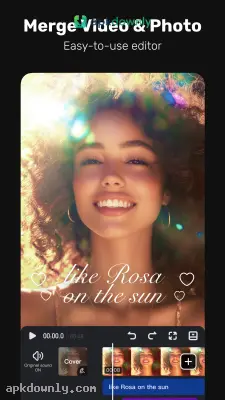
Lots of editing apps pack the screen with tiny menus that are tough to hit. This one keeps the workspace clean. You get a proper multi-track setup right away. That means you can put your main video down on the first track. Then you can stack a smaller reaction clip on top using the picture-in-picture feature. After that, you just drop a text layer over the whole thing.
And it handles audio better than most free options. There is a built-in library of background music sorted by mood. It also includes an audio extractor. If you have a funny video saved to your camera roll, you can rip the sound directly from that file and drop it onto your own timeline.
Key Features Inside the VivaVideo App
The tools here focus on getting your project finished quickly. The developers included several specific shortcuts to cut down on editing time.
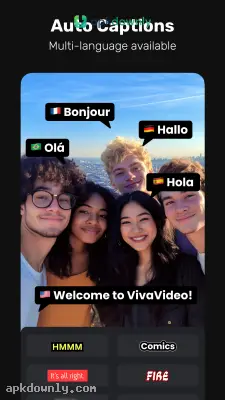
- Auto Captions: Most people scroll through their feeds with the volume off. The app picks up your voice and puts the words on screen. You can change the font and fix any odd errors before you export.
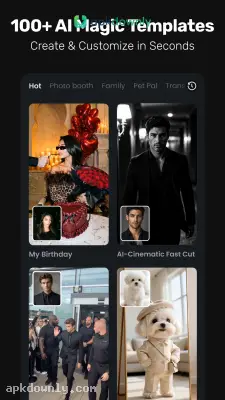
- Trend Templates: Trying to manually match your video cuts to a fast drum beat takes a lot of patience. Pick a template, add a few photos, and the app lines everything up with the music.
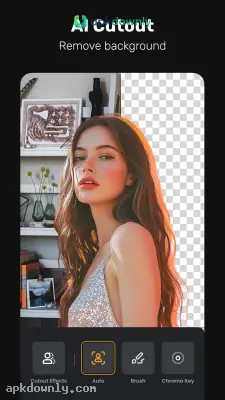
- AI Background Removal: Cut a cluttered room out of your shot without a green screen. The app isolates your body so you can slide a clean background image directly behind your shoulders.
- Keyframe Animation: This lets you move text or stickers across the video. Put a sticker in one spot, move the timeline forward, then drag it somewhere else so it travels.
Steps to Start Editing with the VivaVideo APK
Getting a project started is easy. Follow these steps to build your video.
- Import your media. Hit the create button on the home screen. Choose the photos and videos from your gallery.
- Cut out the quiet parts. Press on a video block to highlight it. Pull the edges inward to chop off the dead space.
- Layer your audio. Hit the audio button below your timeline. You can dig through the built-in songs or press the microphone to talk over the footage yourself.
- Add transitions. Press the small box sitting between your video tracks. You’ll see fades and wipes that smooth the cuts.
- Save the finished video. Press the save button in the top right corner. You can select your video quality up to 4K based on how much storage you have left.
You will see a small logo stamped in the bottom corner if you use the free tier. It also stops you at five minutes. Buying a subscription removes those restrictions entirely.
Plug the phone in before you export a big 4K file so it doesn’t die halfway through.