
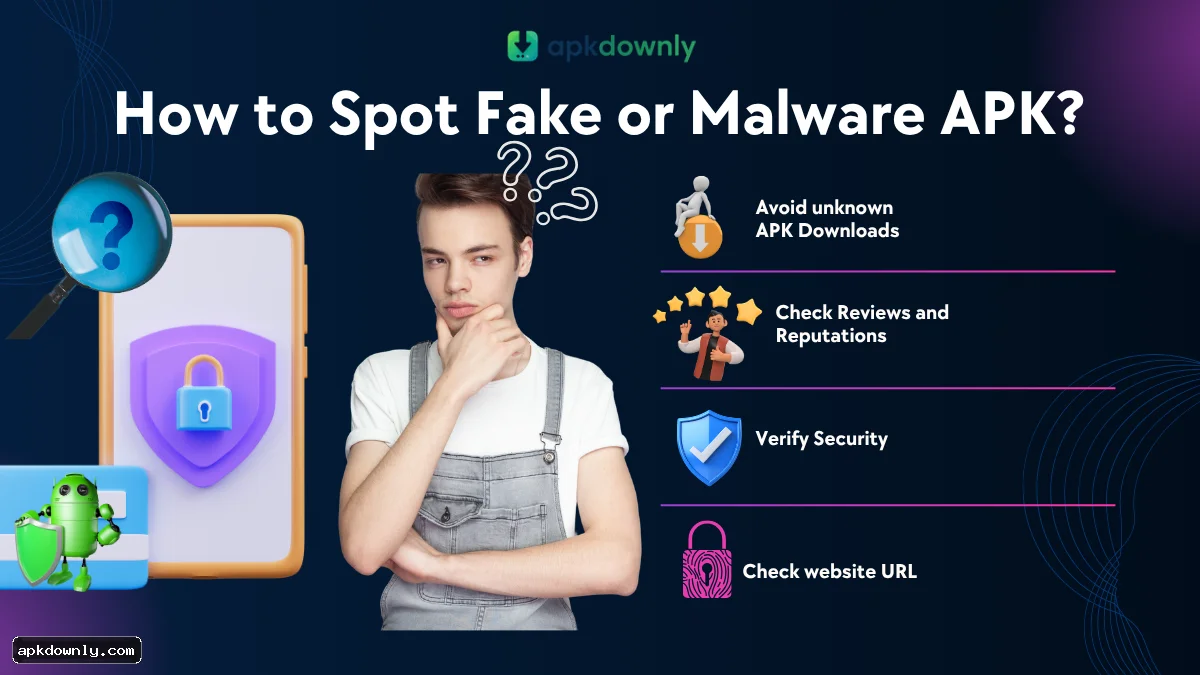
How to Spot a Fake or Malware APK
Sticking to the Google Play Store is easy because Google automatically handles the security checks for you. But the second you start downloading APKs from third-party sites, you are entirely on your own.
People sideload apps for plenty of good reasons—maybe you want a game that isn't available in your region yet, or an update ruined your favorite app and you just want the old version back. Hackers count on this. They regularly drop infected files into forums and download portals, fully expecting people to hit "install" without looking closely at what they just downloaded.
If you aren't careful, a single bad file can hand over your bank passwords or turn your phone into a battery-draining, ad-clicking zombie. The good news is that you don't need to be a cybersecurity expert to catch these files before they cause any damage.
What Is a Fake or Malware APK?
An APK is a kit that makes an application able to install in android operating system.
Most mobile malware isn't built from scratch. Instead, an attacker will download a highly popular application, unpack it using a decompiling tool, and splice their own malicious code into the mix. This newly inserted code might be a hidden background process designed to siphon your contact list, or a Trojan meant to intercept SMS messages for two-factor authentication bypass. Once they’ve injected their payload, they package the APK back up and upload it under the original app’s name and logo. When you launch it, everything looks totally normal on the surface. That is why you have to inspect the file before you tap install—once it’s running on your phone, the damage is already done.
Verify the Digital Signature
Checking an app's digital signature is your single best line of defense. Every legitimate developer signs their APK with a unique private key before releasing it. If anyone tampers with the file—even by changing a single line of code—that original signature breaks completely.
Android actually checks this automatically when you update an existing app. If you try to install a modified APK over an official version, Android will detect the signature mismatch and block it with an "App not installed" error. If that happens, do not uninstall the original app to force the new one through. That error is your phone stepping in to block a hijacked file.
When you're installing an app from scratch, you have to verify the signature yourself. Good developers—especially those in the open-source scene—pin their SHA-256 fingerprints right on their GitHub release pages. If you've spent any time writing code, studying computer science, or scripting out custom web pages, popping open a terminal won't intimidate you. Just grab the apksigner tool from the Android SDK, run it against your downloaded file, and see if the output perfectly matches the developer's official string.
But honestly, nobody wants to fire up a command prompt just to download a mobile game or utility. If you want to skip the manual checks, get your files from strictly managed archives like APKMirror. Their backend system automatically runs those cryptographic checks against official Play Store releases before a file ever goes live on the site, doing all the heavy lifting so you don't have to.
Run the File Through VirusTotal
A single antivirus app running on your phone won't always catch freshly modified threats. Before you install any APK from an unfamiliar site, run it through VirusTotal.
VirusTotal is a free, Google-owned service that scans uploaded files against dozens of major security engines at the same time, giving you a clear breakdown in under a minute:
· 0 Detections: The file is most likely clean. · 1–2 Detections: Typically, it is a false alarm. Small scanners are more prone to flagging aggressive advertising networks or tracking scripts hidden in free programs as viruses. Check which scanners identified it as suspicious — if reputable antivirus companies indicate that the file is safe, you may rest assured that it is not dangerous. · 5+ Detections: Delete the file without hesitation. If several scanners identify the file as malicious, it is better to get rid of it than try to find out what exactly is wrong with it.
Inspect the App Permissions
Android’s permission system is your final checkpoint. When you trigger an install, the operating system lays out exactly what the software wants to access. Take a second to actually read it.
A simple, offline calculator should not require access to your microphone. An icon pack should not be reading your SMS or tracking your GPS.
The two big red flags when reviewing an app’s permissions are Device Administrator (BIND_DEVICE_ADMIN) and Accessibility Services. You should never allow a random utility app or game to request administrator permissions. By giving it administrator rights, you let the app perform any action on your device, such as disabling the screen lock, changing your PIN, and even preventing you from removing the application.
Accessibility Services are equally dangerous. While originally designed to help users navigate their phones, this permission is constantly exploited by banking trojans. Granting it allows an app to read everything on your screen and automatically tap buttons on your behalf without you ever touching the device. For a malware developer, it is basically a skeleton key to your entire phone.
Check for Visual Clues and File Size
Sometimes the most obvious clues are right in front of you. Scammers frequently push payloads disguised as massive, popular games. If you are attempting to download a graphically intense mobile RPG that normally takes up several gigabytes of storage, and the downloaded APK is only 4MB, it is not the game. It is likely a tiny installer designed to fetch a malicious payload from a remote server once you grant it network access.
You should also look closely at the spelling of the developer's name and the quality of the app icon. Repackaged malware often relies on typos (like "Faceboook") or low-resolution assets to trick people who are rushing. If you are browsing a lesser-known download portal and the accompanying assets look terrible—for example, if an uploaded screenshot or an extracted asset file named image_681a45.png looks awkwardly cropped or compressed to the point of pixelation—you should find a different source. Legitimate developers do not use sloppy graphics for their official releases.
Final Notes on Sideloading Apps
Although sideloading offers a big degree of freedom and flexibility, users must exercise caution while doing so. It is essential to make it a habit to check all digital signatures and scan suspicious files with VirusTotal. One should also take extra special care when granting access to permissions that they do not recognize. By spending an extra hour checking an APK, a user can gain the ability to explore the greater Android world, free from malware.