

To install an apk safely without any problems, you have to follow a few steps, which are given below.
The first step is trustworthiness; you have to check several things before downloading the apk from any source, like the developer of the APK, whether your mobile is compatible with apk, updates, and the size of the APK. The version and the security information are crucial.
You can download APK from different resources, but the question is about trust. If you have no information about the APK from authentic sites, you can search for popular sites that have tons of users.
Check the APK Before Installing It.
Yeah, you can check the APK again before installing it; downloading is not enough. After downloading, check the developer name and version again; is it related?
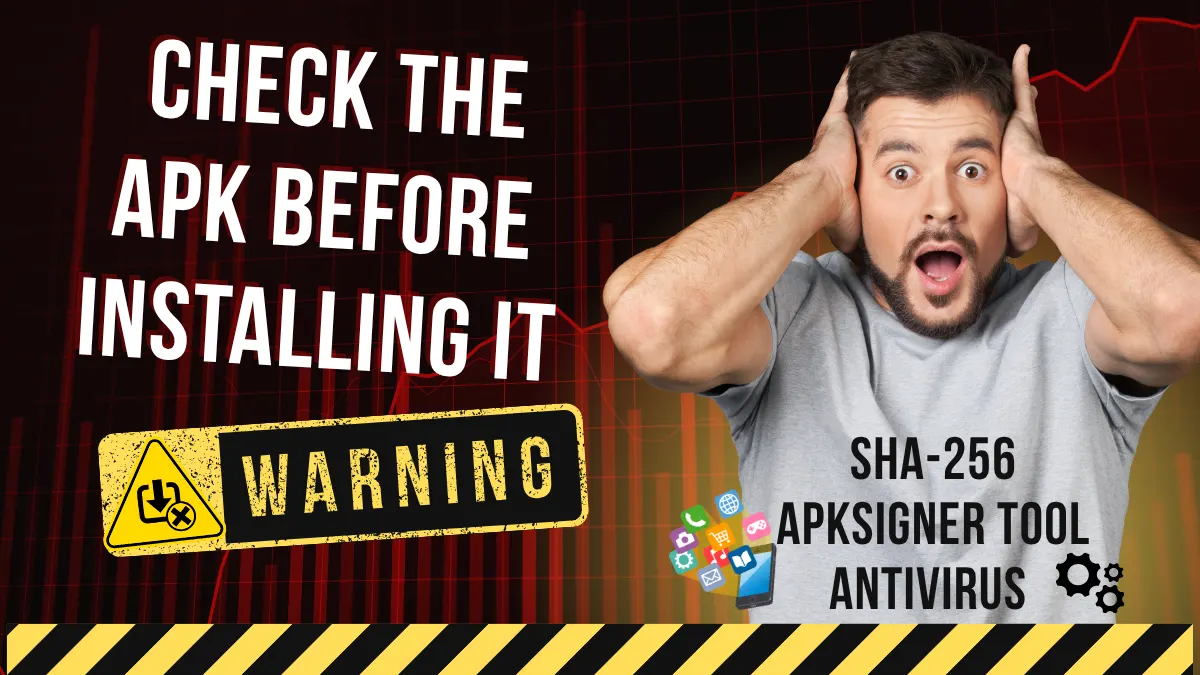
Check the APK Signature.
Do you know? Google brought a major update about APK developers, which is known as Android developer verification. This is especially for user safety. In this update, Google will check developers' IDs and many more things. This update will be launched on 30 September 2026 in Thailand, Brazil, Indonesia, and Singapore. This update is limited to these four countries only for now; later in 2027, it will be expanded to the entire world.
- Android apps are signed digitally. You can check the developer signature before launching the app; developers have to sign the application digitally for later accountability. Now, to check the signature, you can use the apksigner tool. You don’t need to run it manually; the Android operating system automatically runs it.
- Second is the cryptographic fingerprint, which uses a SHA-256 checksum to calculate a file hash. Publishers of apk or apps share SHA-256 values for applications, so you can compare the SHA-256 values of both APK; if it matches so, it means it is real and safe. If they do not match, it is a modified version.
- Third, scan the APK through antivirus detection engines like VirusTotal. This engine tells about the apk is safe or not. What to do if it finds something malicious in apk: don’t install it immediately. First, check whether the problems in the file are serious enough that your device could be compromised, or unnecessary, so you can avoid it according you requirements
Allow installing unknown apps.
Generally, when you install an unknown app from an unknown source, you have to allow Android to install it. For this, there are two ways to install it.
- First: simply click the APK you want to install; a pop-up will show, “Would you like to install the APK? It can harm your device”. Simply click Proceed and install.
- Second: you have to do it manually in Settings. So open Settings, find the option Security and privacy or apps, now click on special app access and allow it for installing apk from unknown sources, like Chrome or any app you have.
Now install apk.
Once you are done with all the settings. Now go to the folder where you download you apk. Click the APK, see the additional information, and proceed with the installation process. It will take some time; after installing it, you can use it.
Keep Google Play Protect (GPP) Enabled.
Only downloading from trusted resources and installing the APK is not enough. To keep your device safe in the future, you have to keep Google Play Protect enabled. Google Play Protected check apks at backend; if anything bad happens in the APK, Google play Protected will show you a warning message. Apart from this, you can check the permissions of a particular apk what the apk is accessing on your device, like the camera, microphone, gallery, or contacts; you can control it according to your needs.
What can stop APK installation?
- First, if the APK is still not installing, check for updates on your mobile because some APK are supported by newer mobile versions.
- Second, the apk file you downloaded is corrupted or broken.
- Third, you already installed another version of apk that stops installation.
- Fourth, sometimes Google Play Protect automatically blocks APK for serious threats.
What are alternatives to APK?
There are several alternatives to APK, like XAPK. It is also the same as an APK, but it has some extra files. APKS is a group of APK, mostly split APK. APKMirror contains multiple APK inside it for distribution.
Are websites safe to download apk?
It depends on the website; some websites ask for the developers of APKs and check their developer ID and APK information. But Google restricts downloading APK from websites, as it can breach the privacy and policy of your device. You can also check the website to see whether it keeps developer information for later issues, like the developer ID, SHA-256 checksum, version info, file size, update history, and malware scanning information, etc.
What are the Pros and Cons of APK installation?
Pros of APK installation:
Accessibility:
You can install and use applications that are not available on stores like the Google Play Store, App Store, and other stores, etc. If those applications are not available in your country, you can use them with apk files.
Version Uses:
APK lets you use the version you want, meaning you can use older versions according to your needs.
No wait for official launch:
With APK, you don’t need to wait for the official release; some developers directly share these apk.
For Bug Finding:
Developers make an APK of and Application before releasing it to find the bugs.
Rare Apps:
Those apps that are no longer available on the Google Play Store can get with APK.
Cons of APK installation:
Security Risks:
Downloading APK from untrusted sites may breach security and privacy due to malware.
Manual installation:
It becomes a lengthier process to install an APK as compared to the Google Play Store.
No Automatic Updates:
No automatic updates mean you can’t update your APK like in the Google Play Store. You have to download an APK file from a third party.
Compatibility Issues:
May be some APK will not work due to errors or crashes. Or it may be due to device versions
Fake APKs:
Some sites may share fake files or APKs. And there are tons of other issues that you can face.


