

Microsoft Teams
Get this app from Google Play Store for automatic updates & security. Use APK if Play Store is unavailable in your region or you need an older version.
Screenshots

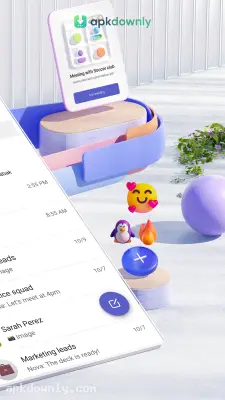

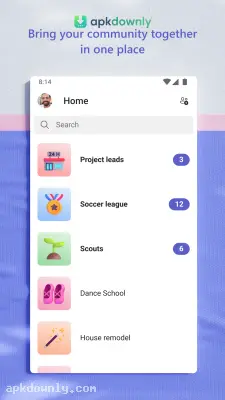
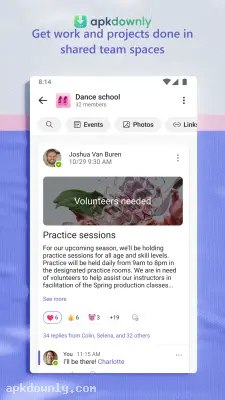
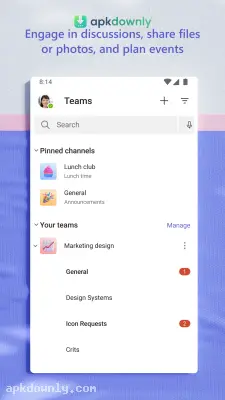
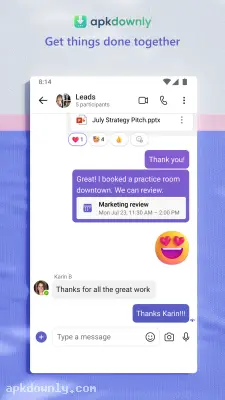

Screenshots from Google Play
More in Business
View all →


About this app
Microsoft Teams
We all need a dependable way to speak with coworkers, teachers, and family. Microsoft Teams puts those video calls and chats right on your screen. You get it for free to handle your daily conversations. And you can gather up to 100 people in one room and talk for an hour without paying a dime.
What to expect from the Microsoft Teams app
This tool brings your video calls and text messages into one place. The system links straight to the Microsoft account you already use. There is no need for a fresh login if you have Outlook or Xbox set up. It simply handles your calls using your normal internet connection.
Sorting out your chats is quick. You can set up separate text groups for your house, your friends, or your work teams. It lets you drop files straight into the chat box instead of using email. All your calls are encrypted for privacy. Plus, you can use quick emojis to send a thumbs-up when you lack the time to type.
Top features for your calls
Each meeting room provides standard options for your group.
- Dependable video: The camera feed automatically reacts to your internet speed. Quality is reduced automatically so the call stays connected when your signal weakens.
- Screen sharing: Display your full monitor or only one chosen window. This proves helpful when going over a document together.
- Copilot AI: Microsoft added its smart assistant to the software. Paid accounts can ask the tool to summarize long chat histories so they can catch up quickly.
- Fast search: Tracking down an old message takes almost no effort. You just type a keyword or file name to search your entire chat history.
- Host controls: The individual who starts the room stays in charge. Noisy participants can be muted, their video stopped, or they can be removed.
How to make a call
Setting up a room is quick.
- Open the app and log in using your Microsoft email address.
- Tap the "Meet now" button above your messages.
- Grab the link on your screen and send it to your friends.
- Wait for them to click the link. You just tap "Admit" when they pop up on your screen.
Just click the invitation link if someone else started the room. The application opens right away. A preview window always appears so you can check your camera and microphone before entering.
Settings you should check
You control what others see on camera. Softening a cluttered bedroom background before joining is simple. Your real background can also be swapped for an image of a tidy office.
While chatting, all controls sit in the bottom menu. The microphone icon mutes your audio. The camera button turns off your video. A meeting timer is available to prevent the discussion from exceeding the planned time.
Dark mode is available in the Microsoft Teams app settings whenever bright white screens strain your eyes.